4.2.3 Import Point Cloud and Trajectory
Import LiDAR Point Cloud
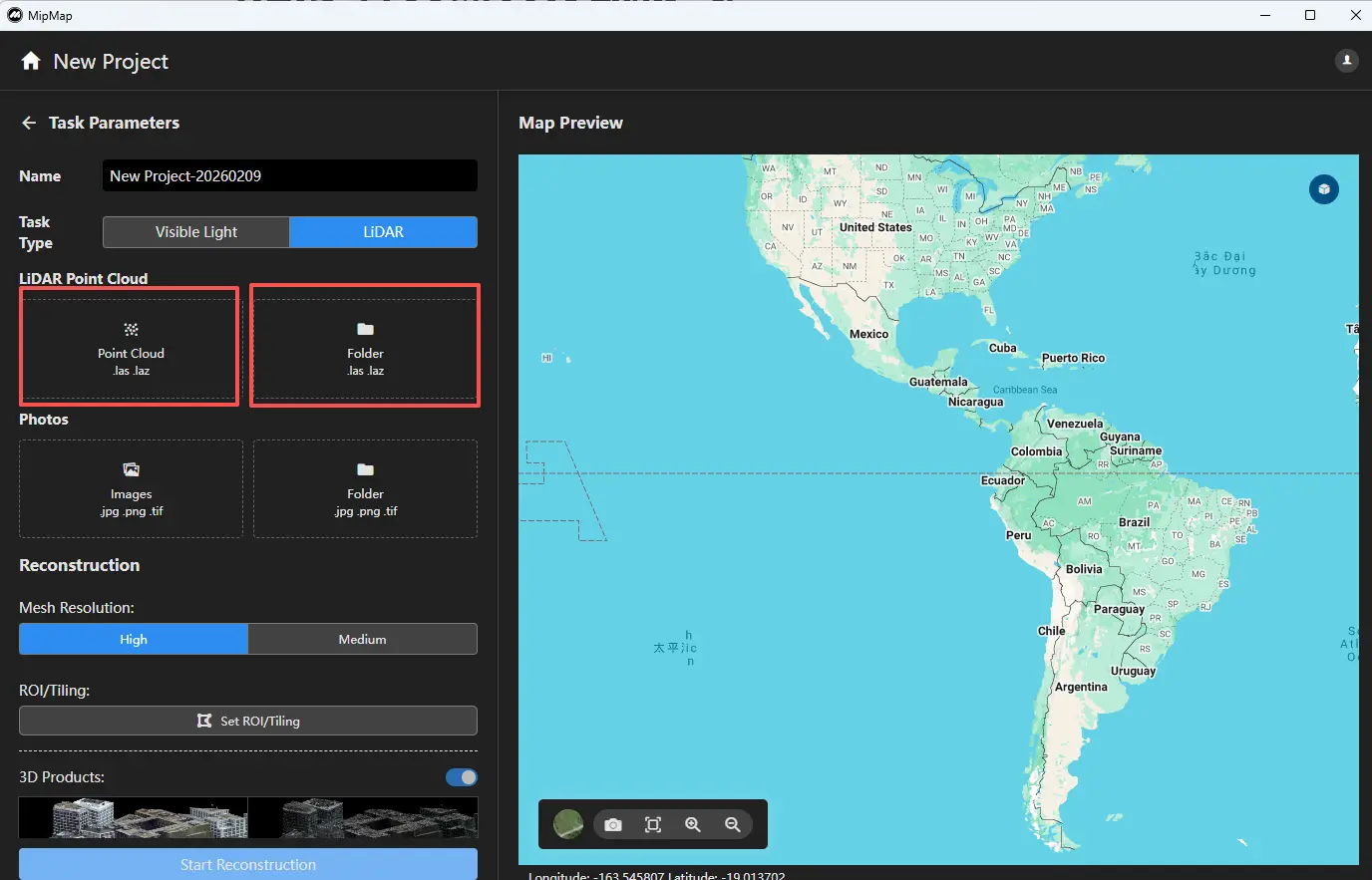
In the task parameters panel on the left, you can import LiDAR point clouds by file or by folder.
- Import by file allows you to select specific point cloud files within a folder to participate in reconstruction.
- Import by folder will import all point cloud data within the selected folder (including subfolders) into the task.
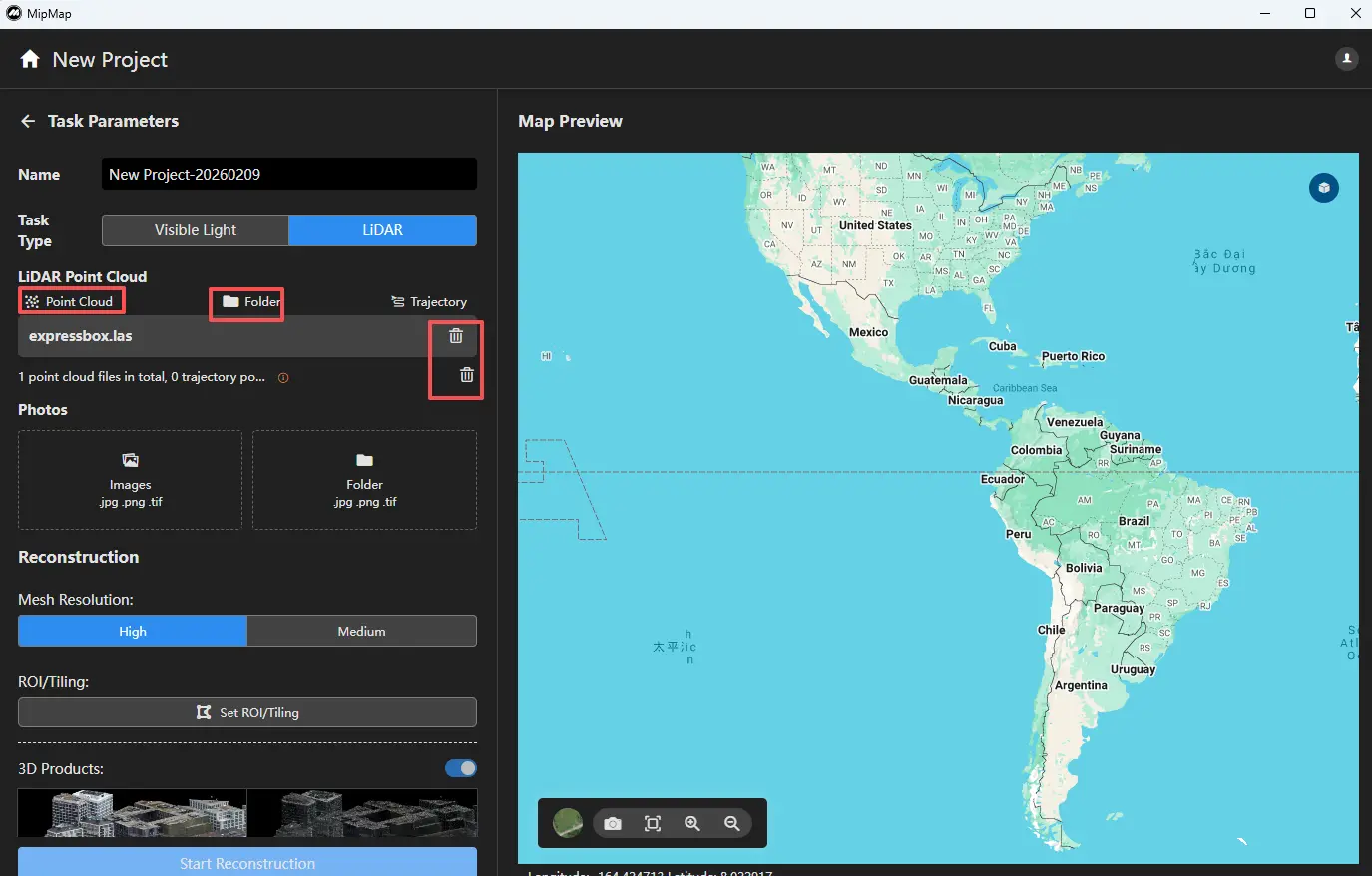
After importing the point cloud, you can click the corresponding function above the point cloud list to continue importing more data. You can also click the delete icon on the right side of a point cloud entry to remove it.
Import Trajectory
After importing the point cloud, click the Trajectory function above the point cloud list to import trajectory data.

Click Import Trajectory File  , select the corresponding trajectory file, and assign the appropriate columns for timestamp, X, Y, and Z. After configuration, click Confirm.
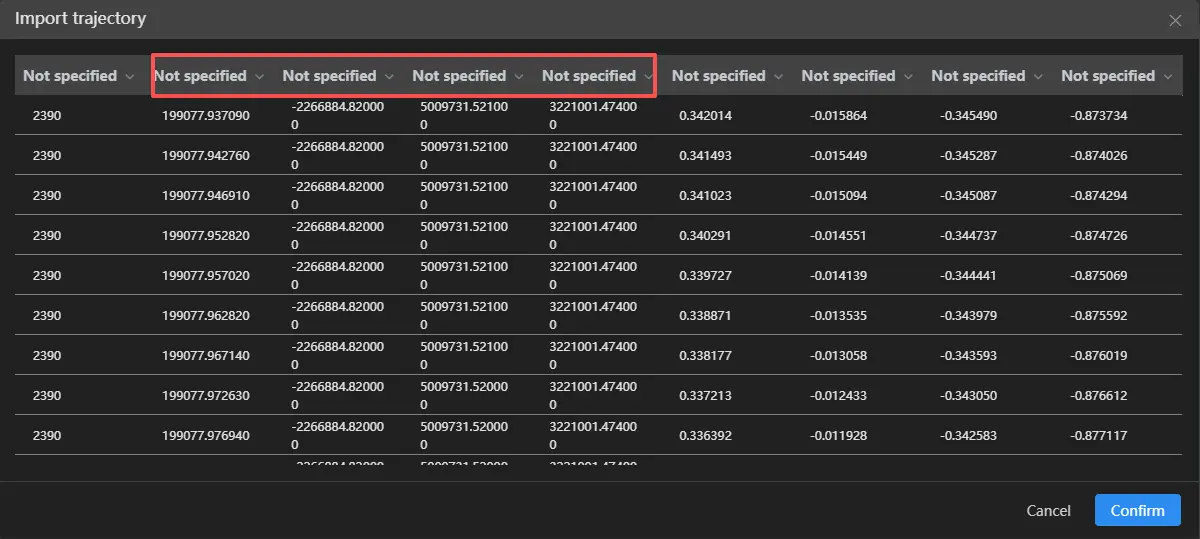
Next, set the coordinate system for the trajectory data  .
.
Note: The timestamp and coordinate system of the trajectory must be consistent with those of the point cloud.

After completing the setup, click Confirm. If configured correctly, a preview of the trajectory will be displayed on the map.
